
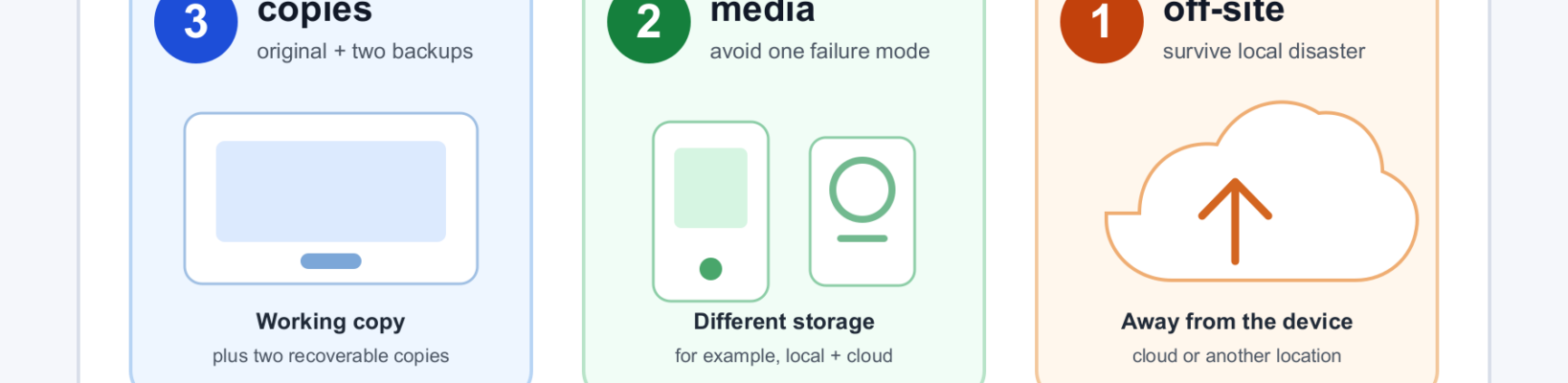
The 3-2-1 backup rule is a simple way to make sure one failed drive, stolen laptop, bad sync, house fire, or ransomware incident does not erase the only copy of your important files. The rule is easy to remember: keep three copies, use two different storage types, and keep one copy off-site. The part most people miss is the final step: prove that you can actually restore.
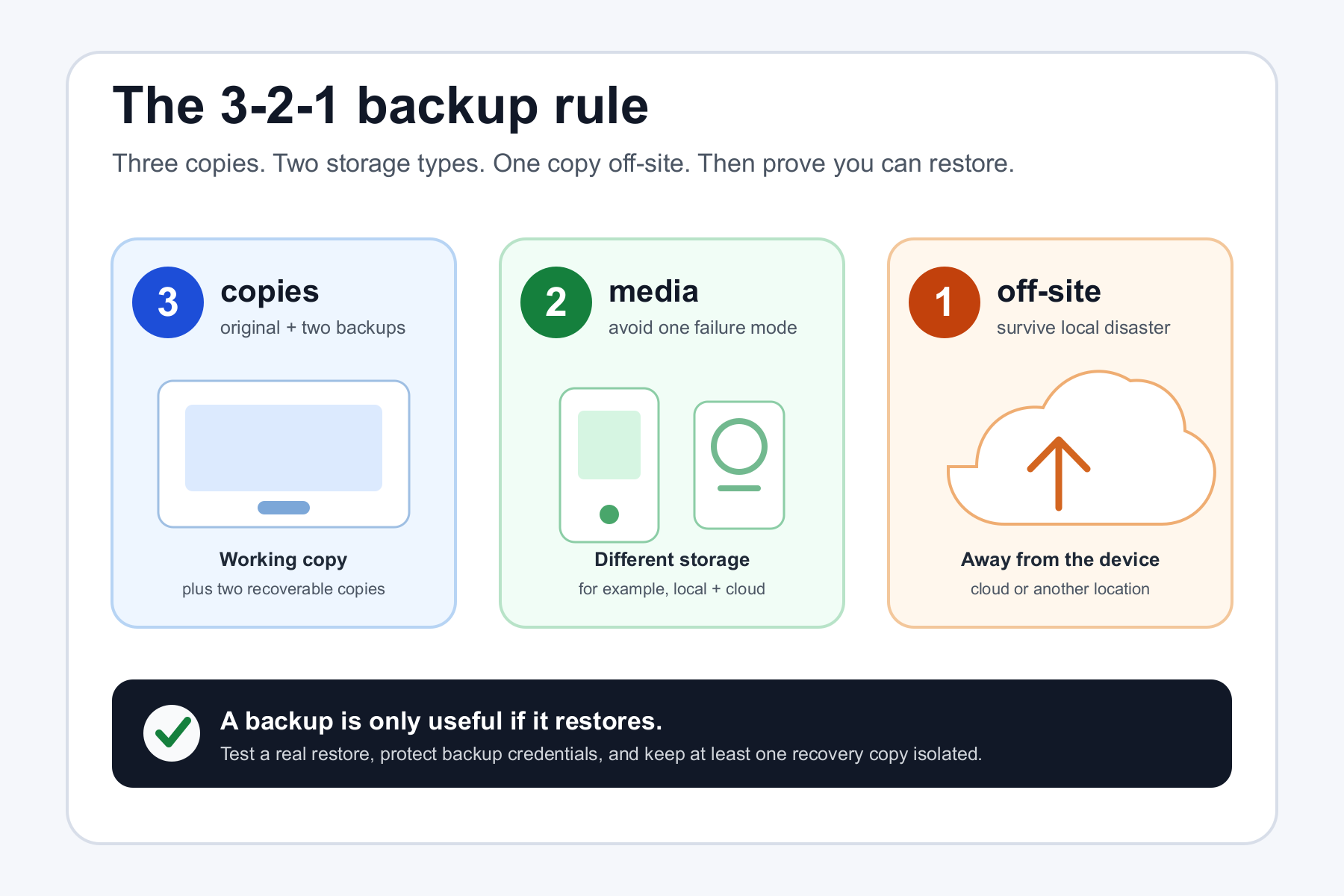
- 3 copies: your working files plus two additional recoverable copies.
- 2 storage types or failure domains: do not put every copy on the same device or in the same storage system.
- 1 off-site copy: keep at least one recovery copy away from the computer and location you are protecting.
- Do not confuse sync with backup: a synchronized deletion or encryption event can propagate to the cloud.
- Test restores: a backup job saying “success” is not the same as recovering a real file when you need it.
Backups are easy to postpone because nothing seems wrong until the day something is. A laptop dies. A phone disappears. A folder is deleted and the mistake is noticed weeks later. A cloud account is compromised. A ransomware infection encrypts files that were sitting on a connected backup drive. The practical goal of backup is not to collect copies for their own sake. It is to preserve a path back to a known-good version of your data.
The 3-2-1 rule is one of the clearest ways to build that path. U.S. government guidance from CISA describes it as three copies of important files, on two different media types, with one copy stored off-site. CISA’s ransomware guidance goes further for organizations by recommending offline, encrypted backups and regular testing of backup availability and integrity.
Sources: CISA/US-CERT: Data Backup Options · CISA: #StopRansomware Guide
What the 3-2-1 backup rule actually means
The numbers describe independence. If every copy can be lost by the same event, you do not really have the protection the rule is trying to create.
| Part of the rule | What it means | Simple example | Main risk it reduces |
|---|---|---|---|
| 3 copies | Your active data plus two additional copies you can recover from. | Laptop + external-drive backup + cloud backup. | A single corrupt, lost, or failed copy does not become total loss. |
| 2 storage types or failure domains | Do not let every copy depend on the same physical device or storage system. | Internal SSD + USB hard drive, with another copy in remote storage. | One hardware failure, enclosure failure, or storage-system problem is less likely to take everything. |
| 1 off-site | At least one copy is physically separated from the device and location you are protecting. | Encrypted cloud backup or a drive stored at another location. | Fire, theft, flood, or another local event does not destroy every copy. |
A useful mental model is to ask, “What single event could still destroy all three?” If the answer is “theft of one bag,” “ransomware on one PC,” “a fire in one room,” or “deleting a synchronized folder,” then the copies are not independent enough yet.
That does not mean every home user needs enterprise storage. For many people, one computer, one automatic local backup, and one separate cloud backup is already a strong implementation. The design matters more than the number of boxes on your desk.
Sources: CISA/US-CERT: Data Backup Options · Synology: Backup & Data Protection
Sync is useful, but sync alone is not the same as backup
Cloud synchronization is excellent for keeping the same current files available on several devices. That strength can also be its weakness: changes are meant to propagate.
Microsoft’s OneDrive documentation states that when you add, change, or delete a file or folder in the OneDrive folder, that change is also added, changed, or deleted on the OneDrive website and vice versa. In other words, if your only “backup” is a live synchronized folder, a mistaken deletion can travel with the sync.
Some sync services add recovery features. Microsoft, for example, documents recycle-bin recovery, version history, and for eligible Microsoft 365 subscribers the ability to restore an entire OneDrive to an earlier point within a 30-day window. Those features are valuable, but they are still one provider’s retention and recovery system. A separate backup copy gives you another recovery path if the sync account, retention window, credentials, or data itself becomes unavailable.
A practical rule: use sync for access and collaboration; use backup for recovery. A service can do both jobs, but verify that it really provides independent history and restoration rather than assuming “in the cloud” automatically means “backed up.”
Sources: Microsoft: Sync your computer’s files and folders with OneDrive · Microsoft: Restore your OneDrive
What each backup layer should do
Copy 1: the working data
This is the version you use every day: documents on the laptop, photos in the photo library, project folders on the workstation, or active data on a small-business server. It is not a backup just because it is stored on a reliable SSD or a mirrored storage array. It is the production copy you are trying to protect.
Start by identifying what would actually hurt to lose. Typical categories include family photos and videos, tax and financial records, schoolwork, business documents, customer records, design files, source code, password-vault exports where appropriate, and any local-only application data that is not automatically recreated elsewhere.
Copy 2: the local backup
The local backup is the fast recovery layer. An external hard drive, a dedicated network backup target, or another local storage device can let you recover a large folder without downloading hundreds of gigabytes from the internet. The important word is backup: use software that keeps recoverable history, not just a one-time drag-and-drop copy you may forget to refresh.
Windows File History can save versions of personal files to an external drive or network location. Apple Time Machine can automatically back up a Mac and retain hourly, daily, and weekly history according to available storage. Those built-in tools can provide a straightforward local layer when configured and monitored properly.
Sources: Microsoft: Backup and restore with File History · Apple: Back up your Mac with Time Machine
Copy 3: the off-site backup
The off-site copy exists for events that can take the computer and the local backup together. That can be a fire, flood, theft, electrical event, or simply a bag containing both a laptop and its “backup” drive being lost at the same time.
For most households, an encrypted cloud-backup service is the simplest off-site layer because it can run automatically without manually transporting drives. A manually rotated drive stored somewhere else can also work, but the process has to be frequent and reliable enough to match how much recent work you are willing to lose.
CISA’s consumer-oriented guidance recommends an external drive or a properly vetted cloud service when data is only stored locally. It also warns against leaving an external backup drive connected when it is not actively being used, because ransomware can potentially reach connected storage.
Source: CISA: How to Protect the Data that is Stored on Your Devices
Three simple 3-2-1 setups that make sense
For one Windows PC
- Working copy: files on the PC.
- Local backup: File History or another versioned backup tool writing to an external drive.
- Off-site backup: a separate cloud-backup service that automatically protects the important folders.
If the external drive stays attached for convenience, the local layer becomes easier to automate but more exposed to malware or electrical damage. One compromise is to use an always-on local target for frequent history while making sure the off-site layer is separately authenticated and versioned. Another is to connect the local drive only during scheduled backups. The right tradeoff depends on whether automation or physical isolation is more likely to be neglected in your household.
For one Mac
- Working copy: files on the Mac.
- Local backup: Time Machine to an external disk or supported network destination.
- Off-site backup: a separate cloud backup or a rotated encrypted drive stored elsewhere.
Apple says Time Machine automatically keeps hourly backups for the past 24 hours, daily backups for the past month, and weekly backups for previous months, deleting the oldest backups when the destination becomes full. That history can be excellent for local recovery, but an external disk sitting beside the Mac is still in the same room. The off-site layer solves a different problem.
For a household or very small business with several computers
A central NAS or server can simplify local backups, but do not mistake centralization for off-site protection. A sensible pattern is endpoints ? local NAS/server ? off-site backup or replication. Each laptop can also use its own cloud backup if that is easier to manage.
For business data, the recovery process should be written down: which machines matter first, where credentials are stored, who can restore, how long a full restore takes, and what happens if the primary administrator is unavailable. NIST’s contingency-planning guidance emphasizes identifying recovery requirements and priorities rather than treating backup as an isolated technical task.
Sources: NIST SP 800-34 Rev. 1: Contingency Planning Guide · NIST SP 800-184: Guide for Cybersecurity Event Recovery
How often should you back up?
There is no universal schedule because the real question is: how much recent work can you afford to lose? If a family photo library changes a few times a month, a daily automatic cloud backup is generous. If a business creates orders, invoices, client files, or code all day, losing a week may be unacceptable.
Automation is usually more important than an ambitious schedule that depends on memory. CIS Control 11 calls for automated backups of in-scope enterprise assets weekly or more frequently based on the sensitivity of the data. CISA’s ransomware guidance similarly stresses maintaining backups regularly. Those are organizational controls, not a rule that a home user must copy every file once a week; the useful principle is to tie frequency to the amount of data you can tolerate losing.
A simple planning exercise is to ask: if this computer died at 5 p.m., what is the oldest acceptable recovered version? One hour? Yesterday? Last Friday? Your answer is your practical recovery-point target. Configure the backup frequency to beat it with margin.
Sources: Center for Internet Security: CIS Controls v8, Control 11 · CISA: #StopRansomware Guide
Ransomware changes the backup design
A backup that is permanently writable from the infected computer can become another target. Modern ransomware may search for attached drives, network shares, backup credentials, and cloud data. That is why CISA recommends maintaining offline backups of critical data and regularly testing their availability and integrity. The FTC likewise advises small businesses to save important files to a drive or server that is not connected to the network.
For a household, “offline” can be as simple as disconnecting an external drive after the backup completes. For a business, it can mean immutable object storage, restricted backup accounts, offline media, or a separate recovery environment. The technology changes with scale, but the principle is the same: an attacker who controls the ordinary workstation should not automatically control every recovery copy.
Also protect the credentials used to reach cloud backups. Use a unique password and multi-factor authentication when the provider supports it. If the same compromised email account can reset every backup credential, the off-site copy may not be as independent as it appears.
Sources: CISA: #StopRansomware Guide · FTC: Cybersecurity for Small Business — Ransomware · FTC Consumer Advice: Five ways to keep scammers and hackers away
The restore test is part of the backup
A green check mark proves that software completed a job. It does not prove that the right folders were included, the encryption key is available, the destination is readable, the archive is not corrupt, or you know the restore steps under pressure.
CIS Control 11 explicitly includes testing data recovery. NIST recovery guidance likewise treats testing and exercises as part of resilience planning. For a small setup, you do not need a disaster simulation every weekend. You do need enough practice to know the recovery path works.
A five-file restore test
- Choose five files of different types from different important folders.
- Restore them to a temporary location rather than overwriting the originals.
- Open each restored file and confirm it is usable.
- Check that at least one older version can be recovered, not only the newest copy.
- Write down the restore steps and where any recovery key or account information is stored.
For a business, add periodic larger tests: restore an entire folder, a virtual machine, a database, or a representative system to a safe location. Measure how long it takes. If the full restore requires three days but the business expects to be back in two hours, the backup may be intact but the recovery plan is still wrong.
Sources: CIS Controls v8: Data Recovery · NIST SP 800-84: Guide to Test, Training, and Exercise Programs
Back up the things people forget
Most backup plans start with Documents and Pictures. Real recovery often depends on less obvious data.
- Desktop and Downloads: people frequently save important files there temporarily and never move them.
- Email archives: especially local PST, MBOX, or mail-client data that is not fully held by the mail provider.
- Application data: accounting databases, creative-project libraries, game saves, browser profiles, local notes, or line-of-business software.
- Phone photos and videos: confirm whether the phone’s cloud service is syncing, backing up, or merely optimizing local storage.
- Encryption and recovery keys: an encrypted backup is useless if the only copy of the key was on the lost computer.
- Website and domain records: for a small business, keep exports of critical configuration, source code, and documentation outside the live hosting account.
- Cloud-only data: if a business depends on SaaS data, understand the provider’s retention and export options rather than assuming the provider’s infrastructure is your independent backup.
Microsoft’s Windows recovery documentation makes a useful distinction here: a recovery drive can help restore Windows itself, but it does not include your personal files. System recovery, application recovery, and data recovery are related jobs, not automatically the same backup.
Source: Microsoft: Backup, restore, and recovery in Windows
Backup, archive, RAID, and version history are not interchangeable
Backup is a recoverable copy designed to get data back after loss or corruption. Archive is long-term retention of material you may not need in active storage. Version history lets you return to an older state of a file within a system. RAID or mirrored storage can keep a system running when a drive fails, but the mirrored copies are still part of the same storage system and usually the same location.
These technologies can complement each other. A NAS might use mirrored disks for availability, keep snapshots for quick version rollback, receive laptop backups, and then send an encrypted copy off-site. That is stronger than expecting any one feature to solve every recovery problem.
Backblaze’s current explanation of the 3-2-1 strategy and Synology’s backup guidance both emphasize diversification across copies and locations. Their products are commercial, so treat their product recommendations as vendor material, but the architecture they describe aligns with the broader CISA guidance.
Sources: Backblaze: The 3-2-1 Backup Strategy · Synology: Backup & Data Protection
Common 3-2-1 mistakes
Keeping the backup drive next to the laptop forever
That helps with drive failure but not theft, fire, or some ransomware scenarios. Add a genuinely separate off-site layer.
Counting a synchronized folder as the second and third copy
If the desktop folder and cloud folder are one live synchronization system, one deletion can affect both. Verify independent version history or use a separate backup service.
Backing up manually “when you remember”
Manual copies work until life gets busy. Automate the routine layer and reserve manual steps for periodic rotation or testing.
Never testing a restore
The first time you learn that a backup excluded the photo library should not be after the computer is gone.
Keeping every backup online under the same credentials
Separate recovery copies should also have useful security separation. Protect backup accounts with strong authentication and restrict who can erase backup history.
Buying a drive that is barely large enough
Versioned backups need room for history, not just one exact copy of today’s files. Leave capacity for growth and older versions. How much depends on the backup tool and how quickly your data changes.
How to choose an external drive or cloud backup service
This is where backup becomes a purchasing decision, but the product should fit the recovery plan rather than the other way around.
| What to check | External drive | Cloud backup service | Why it matters |
|---|---|---|---|
| Capacity | Enough for current data plus version history and growth. | Storage allowance or unlimited-policy details for the devices you need. | A destination that fills immediately will shorten history or stop backups. |
| Automation | Works with the backup software and connection pattern you will actually use. | Automatic scheduling, background operation, and clear failure alerts. | The best backup is the one that keeps running without memory. |
| Version retention | Controlled by the backup software and free capacity. | Check deleted-file and old-version retention rules. | Older versions are critical for delayed discovery of corruption or deletion. |
| Restore process | Can you browse and restore without proprietary obstacles? | Check web restore, client restore, large-restore options, and download limits. | Backup speed matters less than recoverability during an emergency. |
| Security | Encryption, physical storage, and safe handling. | MFA, encryption, recovery controls, and account-deletion protections. | The backup contains the same sensitive data as the original. |
Do not buy an expensive NAS, SSD, or cloud subscription because the marketing page says “backup.” First decide which copy it will become, which failure it protects against, and how you will restore from it. A modest external hard drive plus a well-configured off-site service can be safer than a sophisticated local storage box with no remote copy.
A 30-minute starter plan
- List your critical folders and apps. Write down what you cannot easily recreate.
- Check what already has version history. OneDrive, iCloud, Google Drive, a NAS, or another service may already protect some data, but verify retention and restore behavior.
- Add an automatic local backup. Use File History, Time Machine, or another reputable versioned tool.
- Add one off-site copy. Use a vetted cloud-backup service or a rotated drive stored elsewhere.
- Disconnect or isolate the local recovery copy when practical. Especially if ransomware is a concern.
- Turn on MFA for the cloud account.
- Restore five files. Do it now, before you need the backup.
- Set a calendar reminder to test again. Quarterly is a reasonable starting point for important personal data; businesses should align testing frequency with their recovery requirements.
Once the starter setup works, improve it rather than replacing it with complexity. Add monitoring, longer version history, immutable storage, multiple off-site copies, or full-system images only when they solve a real recovery requirement.
How often should you review the plan?
The 3-2-1 principle itself is evergreen, but the tools around it change. Review the setup at least once a year and whenever you replace a computer, change cloud providers, move important folders, add a new business application, or materially increase the amount of data you store. Also recheck the provider’s retention and restore rules after major service or operating-system changes.
During the review, do not just ask whether the backup is “on.” Check the last successful backup time, available storage, included folders, off-site status, account recovery methods, and a real restore. If one of those has silently failed, the review has already paid for itself.
The bottom line
The 3-2-1 backup rule works because it is less about brands than failure boundaries. Keep your working data, a second recoverable copy on a different storage path, and one copy somewhere else. Automate as much as possible, isolate at least one recovery path from ordinary device failures and ransomware, and practice restoring before an emergency.
If you remember only one question, make it this: what single event could still destroy every copy I have? Fix that weakness, test the restore, and your backup plan becomes much more than a pile of duplicate files.
Sources and further reading
CISA/US-CERT: Data Backup Options · CISA: #StopRansomware Guide · CISA: Protect Data Stored on Your Devices · NIST SP 800-34 Rev. 1 · NIST SP 800-184 · NIST SP 800-84 · CIS Controls v8: Control 11 · Microsoft: File History · Microsoft: Backup, restore, and recovery in Windows · Microsoft: OneDrive Sync · Microsoft: Restore OneDrive · Apple: Back up your Mac with Time Machine · FTC: Ransomware Guidance for Small Business · Backblaze: 3-2-1 Backup Strategy · Synology: Backup & Data Protection
