
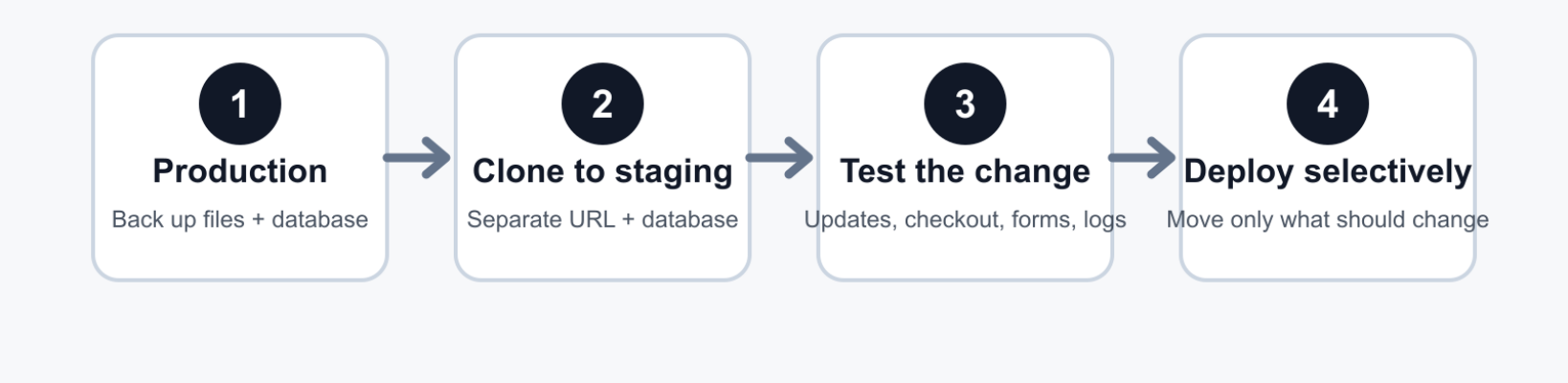
A staging site gives you a working copy of WordPress where you can test updates, code, themes, checkout changes, and integrations before they touch the site your visitors use. The hard part is not making the copy. It is knowing what to isolate, what to test, and what not to overwrite when you move changes back.
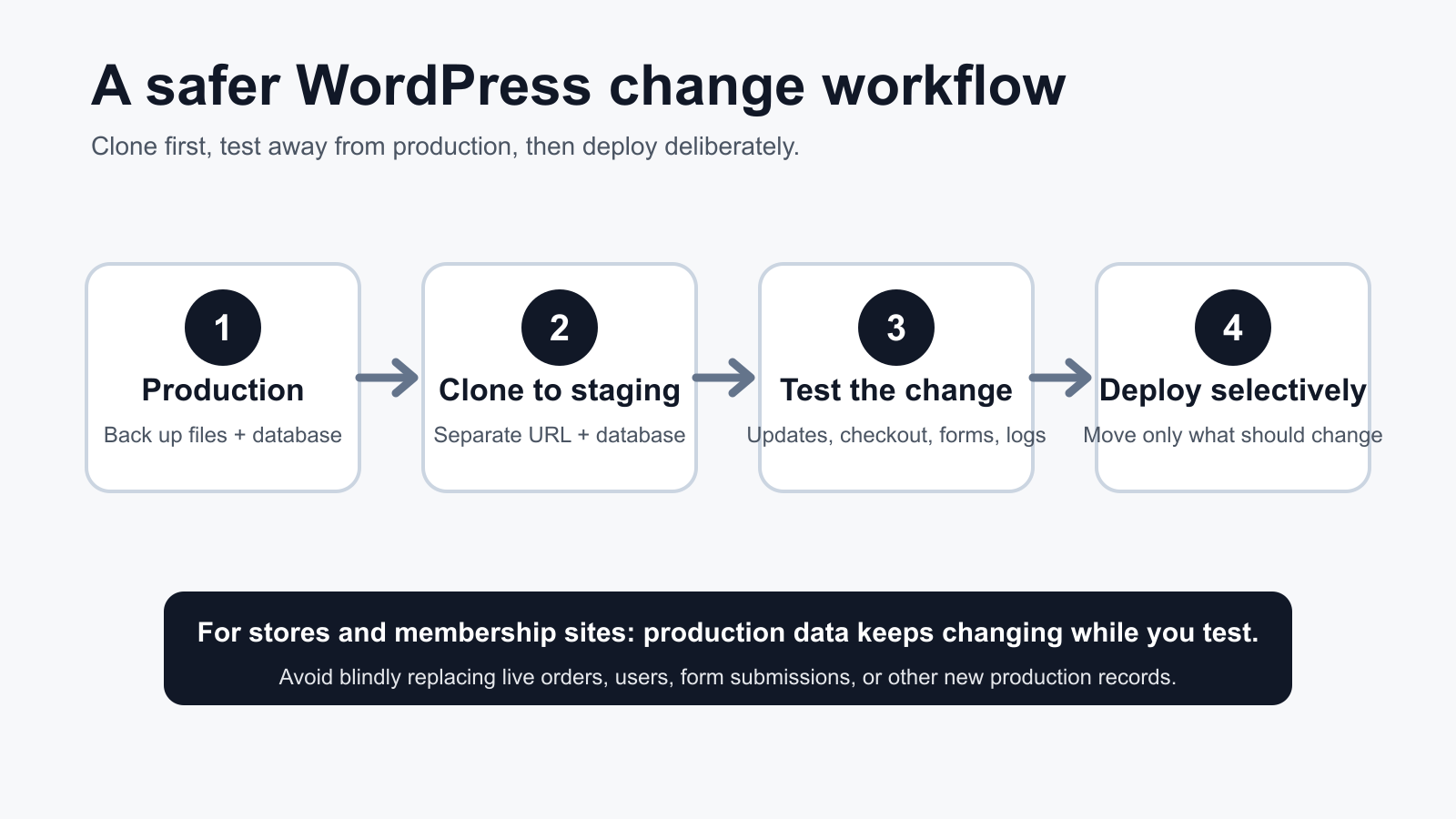
- A staging site is a separate WordPress environment used to test changes before production.
- Staging is not a backup. Keep a recoverable backup before updates and before any deployment.
- For stores, memberships and other dynamic sites, do not blindly replace the live database after customers have created new data.
- Use test payment modes, control outgoing email and webhooks, and keep staging out of search results.
- Hosted staging is usually the simplest path; plugin-based and manual staging give more control when your host does not provide it.
If you have ever updated a plugin and immediately wondered whether the checkout, contact form, editor, or mobile layout still works, you already understand the problem staging is meant to solve. Production is where customers, readers, search engines, payment providers, analytics systems and background jobs meet. It is the worst place to discover that a change has side effects.
WordPress itself recognizes staging as a standard environment type alongside local, development and production. Managed hosts such as Kinsta and WP Engine expose separate staging environments in their control panels, while staging plugins can clone a live site into a separate URL or database. The common idea is isolation: make the risky change somewhere that is close enough to production to be meaningful, but separate enough that a failed test does not become an outage.
Sources: WordPress Developer Resources: wp_get_environment_type() · Kinsta: Staging Environments · WP Engine: Sites and Environments
What a WordPress staging site actually is
A useful staging site is more than a second copy of the homepage. It is a separate WordPress installation or environment with its own database state, files, URL and runtime behavior. Depending on the setup, it may run on the same server, a subdomain, a host-provided temporary domain, a separate server, or a local development machine.
The word separate matters. A change in staging should not edit the production database, send a live customer charge, trigger a fulfillment workflow, publish a real newsletter, or replace a production file unless you deliberately deploy it. A staging environment can still use copies of production data, but its execution path needs guardrails.
WordPress provides the WP_ENVIRONMENT_TYPE setting so themes and plugins can distinguish among local, development, staging and production. Setting it to staging can help well-behaved software adjust its behavior, but it is not a security boundary by itself. It does not automatically password-protect the site, block every crawler, prevent payment calls or stop email. Those protections have to come from the host, plugin, application configuration or access layer you actually use.
Source: WordPress Advanced Administration Handbook: WP_ENVIRONMENT_TYPE
Staging, backups and local development are different tools
These three are often treated as interchangeable. They are not.
| Tool | Primary job | Best use | What it does not guarantee |
|---|---|---|---|
| Backup | Recover a previous state | Rollback after a bad update, deletion, corruption or deployment | It does not tell you whether a change is safe before you make it. |
| Staging | Test a near-production copy | Plugin/theme/core updates, code changes, checkout, forms, migrations, conflict testing | It does not replace a backup and may not match production performance exactly. |
| Local development | Develop on your own machine | Code work, experiments, version control, offline development | It may differ from the production server, networking, cache, CDN or external services. |
WordPress documentation recommends keeping current backups before plugin updates and before upgrades. That is true even when you have staging. Staging helps you find trouble before release; a backup helps you recover if the deployment itself, a later update, or an unrelated failure goes wrong.
Sources: Learn WordPress: How to back up your site · WordPress Documentation: Manage Plugins · WordPress Developer Resources: Backing Up Your Database
When staging is worth using
For a simple personal blog, you may not need a staging cycle for every typo. For changes that can affect site behavior, data or revenue, staging becomes much more valuable.
1. WordPress, plugin and theme updates
Updates can change PHP requirements, database schemas, JavaScript behavior, templates and integrations. A staging pass lets you test the exact update combination your site is about to run instead of assuming that each component works in isolation. For an important site, test the update sequence you intend to use in production, not just the final screen.
2. Theme, builder and layout changes
A CSS change that looks harmless on a desktop page can break a mobile menu, product grid, checkout field or accessibility behavior. Staging gives you space to review common templates, responsive breakpoints, logged-in views and edge cases without putting unfinished design in front of users.
3. Checkout and payment changes
WooCommerce explicitly recommends doing payment testing on a staging site and using a gateway’s sandbox or test mode when available. Test orders can trigger email and analytics, and third-party extensions may not know that an order is only a test. That makes isolation important even when no real card is charged.
Source: WooCommerce: Testing orders
4. Plugin and theme conflict troubleshooting
Conflict testing often means deactivating plugins, switching themes, changing versions or turning features off. WooCommerce recommends a backup and describes staging as a clone of production where you can test conflicts without putting the live store at risk. That is a better place to be destructive on purpose.
Source: WooCommerce: How to test for plugin and theme conflicts
5. Migrations, PHP changes and infrastructure work
A staging copy can expose assumptions that only appear when URLs, paths, PHP versions, cache layers or database settings change. If a migration tool rewrites URLs or serialized WordPress data, verify the transformed copy before changing DNS or the production environment.
Four practical ways to create a staging environment
There is no single best method for every WordPress site. The right choice depends on your host, technical comfort, data sensitivity and how often you need to move changes between environments.
Option A: Use your host’s built-in staging
This is usually the simplest choice when your host provides it. Kinsta, for example, documents standard and premium staging environments that are separate from production and can be created by cloning an existing environment. WP Engine organizes a site into independent Production, Staging and Development environments. Both platforms also document environment-copy workflows.
Best for: site owners who want a controlled workflow without manually copying databases or changing URLs.
Watch for: resource differences. A staging environment may have different CPU, cache, CDN or traffic behavior from production, so a staging speed test is not automatically a production benchmark. Also check exactly what a “push to live” replaces before clicking it.
Sources: Kinsta: Staging Environments · Kinsta: Push Environments · WP Engine: Sites and Environments · WP Engine: Copy Environments
Option B: Use a staging or migration plugin
A staging plugin can be useful when the host does not include staging or when you want more control over the destination. Current WP STAGING documentation, for example, describes cloning files and database tables to a subfolder, subdomain or separate database, with paid options for broader migration and push workflows. Other WordPress backup/migration services also offer staging features.
Best for: shared hosting, multi-host workflows, or site owners who want staging managed from WordPress.
Watch for: storage, permissions, timeouts and how isolation is implemented. A staging copy that shares a server can still compete for CPU, disk and memory. A plugin may keep cloned tables in the same physical database under a different prefix, or it may support a fully separate database. Those are different failure boundaries even if both are called “staging.”
Source: WP STAGING: How to Create a Staging Site & Clone WordPress
Option C: Build a manual staging site
A manual staging environment gives you maximum control, but it also makes you responsible for every moving part. At minimum you need a separate document root or server, a database, a copy of WordPress files, a database copy, the staging URL, correct credentials, safe search/replace behavior and access controls.
One common command-line workflow is:
- Create a recoverable backup of production files and database.
- Provision the staging directory or server and a separate database.
- Copy the WordPress files and import a production database snapshot.
- Point the staging
wp-config.phpat the staging database. - Change stored production URLs to the staging URL using a WordPress-aware tool.
- Set the environment type to staging, then configure indexing, mail, jobs, APIs and payment integrations for safe testing.
- Test login, permalinks, media, forms and the feature you actually changed.
WP-CLI’s wp search-replace command is useful here because it is designed to search and replace WordPress database values while intelligently handling serialized PHP data. It also supports --dry-run, which lets you inspect what would change before writing it.
wp search-replace 'https://www.example.com' 'https://staging.example.com' --all-tables-with-prefix --skip-columns=guid --dry-run

# Review the report first, then rerun without --dry-run only when it looks correct.
Source: WordPress Developer Resources: wp search-replace
Option D: Use a local development copy
A local copy is excellent for development, version-controlled code and experiments. It becomes less representative when the production behavior depends on a host-specific cache, CDN, WAF, mail service, object cache, cron implementation or payment callback. For higher-risk releases, a local workflow is strongest when it feeds into a real staging environment before production.
The pre-test checklist most staging guides skip
A successful clone is not the finish line. Before testing, make sure the copy cannot accidentally behave like production.
Back up before you clone or deploy
Keep a current database and file backup that can actually be restored. A database-only backup does not include themes, plugins, uploads or wp-config.php. If your host provides snapshots, know whether they cover both database and files and how long they are retained.
Keep staging out of search results
WordPress has a search-engine visibility setting, and its Site Health logic can detect when search indexing is discouraged. That is useful, but do not treat a polite crawler directive as confidential access control. If the staging copy contains private data or unfinished material, use host-level authentication, private networking or another real access boundary in addition to noindex controls.
Source: WordPress Developer Resources: Search engine visibility Site Health test
Control outgoing mail, webhooks and scheduled jobs
A staging copy can inherit SMTP credentials, newsletter integrations, webhook destinations, CRM connections, inventory sync and cron tasks from production. Review those integrations before you start clicking. Otherwise a harmless test can send a real customer email, modify an external record or trigger an automation outside WordPress.
Use sandbox payment credentials
For WooCommerce and other commerce systems, use gateway test modes where available. WooCommerce warns that a poorly isolated staging site can influence live ordering behavior and recommends safe test environments for payment troubleshooting.
Sources: WooCommerce: Testing orders · WooCommerce: Troubleshooting orders
Think about copied personal data
A production database may contain customer accounts, addresses, order histories, form submissions or private member content. A staging clone increases the number of places where that data exists. Use only the data you need, restrict who can access the environment, and consider sanitizing production data when realistic testing does not require real identities.
The dangerous part: moving staging back to production
Creating staging is easy compared with deployment. The biggest mistake is assuming that the database is just another file you can replace wholesale.
Imagine you clone a WooCommerce store Monday morning. During the day, customers place orders and create accounts on production while you redesign checkout in staging. If you push Monday morning’s entire staging database over the live database Monday night, you can overwrite data that did not exist when the clone was made.
That is why mature deployment tools offer selective pushes. Kinsta documents pushing only files, only the database, specific files and folders, or specific database tables. WP Engine likewise documents selecting database tables and specifically cautions WooCommerce users to exclude order data when appropriate. WP STAGING’s current push documentation also distinguishes file-only, database and selective-table deployment.
Sources: Kinsta: Push Environments · WP Engine: Copy Environments · WP STAGING: Push a Staging Site to Live
A useful rule for dynamic sites
WooCommerce’s developer documentation describes a common deployment principle as “code goes up, content goes down.” The point is not that this phrase solves every WordPress deployment. It is that production is usually the authoritative source for user-generated content, transactions and other live data, while code changes move toward production from development and staging.
For a brochure site that receives almost no writes, replacing the whole database may be acceptable in a controlled maintenance window. For a store, forum, membership platform, booking system, LMS, busy editorial site or form-heavy site, you need to know which tables and records are authoritative before you merge or overwrite anything.
Source: WooCommerce Developer Docs: Version control and deployment
What to test before you call staging “good”
Do not test only the page you edited. The most useful staging pass follows the paths that can lose money, data or trust.
- Front end: homepage, navigation, representative posts/pages, mobile layouts, search and 404 behavior.
- Admin: editor, media library, role-based access, plugin screens involved in the change.
- Forms: validation, success state, error state, storage and notifications using safe destinations.
- Commerce: cart, coupons, shipping/tax logic, checkout, payment sandbox, order creation and order email behavior.
- Accounts: login, password reset, registration, profile changes and membership restrictions.
- Integrations: APIs, webhooks, CRM, analytics, search, object cache and scheduled tasks.
- Performance-sensitive paths: query-heavy pages, cache behavior and error logs. Remember that staging resources may differ from production.
- Deployment rehearsal: know exactly which files or data will be moved and what the rollback is before the production change begins.
A staging environment that passes the wrong tests can create false confidence. Match the checklist to what the change can realistically affect.
Which staging method should you choose?
If your managed host has good staging: start there. You get a workflow designed around the host’s own filesystem, database and deployment tooling, and the host can document what its push operation does.
If your host has no staging: a reputable staging/migration plugin is usually easier than maintaining a manual clone, especially if you need repeatable refresh and push operations.
If you are a developer or manage complex sites: use version control for code, local development when it helps, and a real staging environment that resembles production closely enough to test the release. Treat database deployment as a data-migration problem, not a file-copy problem.
If you run WooCommerce or another data-heavy application: make selective deployment and external-service isolation first-class requirements. A tool that can create a clone but cannot safely handle live data is only solving half the problem.
A safe staging workflow you can reuse
- Define the change. List what you are updating and which user journeys might be affected.
- Back up production. Confirm both database and files are recoverable.
- Refresh staging. Start from a recent production state when the test depends on current configuration.
- Isolate external effects. Search indexing, mail, payments, webhooks, scheduled jobs and sensitive data all deserve review.
- Make one controlled change set. Avoid mixing unrelated experiments into the same release if you need to diagnose failures.
- Test the change and adjacent paths. Include errors and rollback scenarios, not only the happy path.
- Plan the deployment. Decide files, database tables, migrations and production data that must be preserved.
- Take a fresh production backup immediately before deployment.
- Deploy deliberately. Use selective push or your documented release process.
- Verify production. Re-run the critical checks, watch logs and confirm external integrations.
- Keep the rollback path available. Do not delete the last known-good state until the change has proven stable.
The bottom line
A WordPress staging site is valuable because it separates experimentation from production, not because it gives every change a magical “safe” button. The best setups combine four things: a current backup, a genuinely isolated test environment, a checklist that reflects the site’s real risks, and a deployment method that preserves production data.
For many site owners, host-provided staging is the cleanest starting point. For others, a staging plugin or manual environment is the better fit. Whichever route you choose, the question to ask before every push is the same: what exactly will this operation replace, and what has changed on production since the clone was made? If you can answer that clearly, staging becomes a release discipline instead of just another copy of your website.
Sources and further reading
WordPress: wp_get_environment_type() · WordPress: WP_ENVIRONMENT_TYPE · WordPress: wp search-replace · Learn WordPress: Backups · WordPress: Manage Plugins · WordPress: Database Backups · WooCommerce: Testing Orders · WooCommerce: Conflict Testing · WooCommerce: Version Control and Deployment · Kinsta: Staging Environments · Kinsta: Push Environments · WP Engine: Environments · WP Engine: Copy Environments · WP STAGING: Create a Staging Site · WP STAGING: Push to Production
